Feed Synchronization: Keep Your Custom Feeds Fresh & Optimized
Your custom prospect feeds are only valuable if they stay fresh. Here's how to optimize Warmr's feed synchronization to ensure you never miss important engagement opportunities.
Written By Thomas Durand
Last updated 10 months ago
How Warmr Custom Feeds Work
When you create a prospect list in Warmr, we transform it into a clean, focused LinkedIn feed containing only posts from contacts that matter to your business.
No more noise. No more distractions. Just the prospects you're trying to warm up.
But for this to work effectively, your feed synchronization needs to be properly configured. Here's everything you need to know.
Setting Up Your Virtual Office
The foundation of smart feed synchronization is your Virtual Office—telling Warmr when you're actually working and available to engage.
Why This Matters:
Warmr refreshes your feeds every 4 hours by default. If syncs happen at 2 AM when you're sleeping, you're wasting valuable sync capacity on posts you won't see for hours.
How to Configure:
Step 1: Go to Settings
Step 2: Select "Virtual Office"
Step 3: Set your timezone (crucial for accurate sync timing)
Step 4: Select your working hours (e.g., 9 AM - 6 PM)
Result: Warmr will only sync posts during your active working hours, ensuring fresh content when you're actually available to engage.
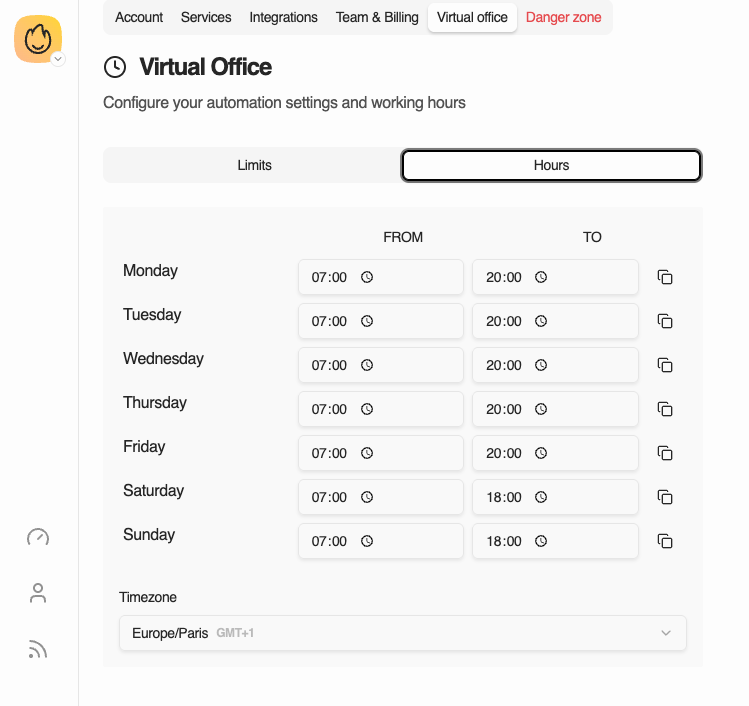
Example Setup:
Timezone: GMT+1 (Paris)
Working Hours: 8:00 AM - 7:00 PM
Sync Schedule: Every 4 hours within this window
This means you get fresh content throughout your workday without wasting syncs overnight.
Understanding Feed Sync Limits
By default, Warmr syncs 80 posts per refresh cycle. This limit exists to protect your LinkedIn account from appearing overly automated.
Default Settings (No Sales Navigator):
Sync Limit:
Feed Scrapes : 80 feed scrapes per day
Comment Publications : 40 comment publications per day
Profile Scrapes : 70 profile scrapes per day
Comments Spacing : 3 minutes min
Comments Spacing per Contact : 1 hour as the minimum time between two interactions with the same contact
Recommendation: Keep this setting as-is
Why: LinkedIn rate limits are designed for regular accounts
Warning:
Don't increase sync limits without Sales Navigator. This can trigger LinkedIn security measures and potentially flag your account.
Sales Navigator Account Settings:
Feed Scrapes: 120-150 per day (safe to increase)
Comment Publications: 60-80 per day (safe to increase)
Profile Scrapes: 100-120 per day (safe to increase)
Comments Spacing: Keep at 3 minutes (safety)
Comments Spacing per Contact: Keep at 1 hour (appears natural)
How to Adjust: Settings → Daily Limits → Adjust based on your account type
Warning:
Don't increase limits without Sales Navigator. This can trigger LinkedIn security measures and potentially flag your account. Also, keep in mind that if you use other automation tool those limits can be impacted.
Contact-Level Feed Sync
For maximum flexibility, Warmr allows you to enable or disable feed synchronization at the individual contact level.
Why This Is Powerful:
Control exactly which prospects get feed syncs
Prioritize high-value contacts when approaching sync limits
Disable sync for contacts you're no longer actively warming
How to Enable:
Step 1: Open any contact in your list
Step 2: Toggle "Contact Sync" to ON
Step 3: The contact's posts now appear in your custom feed
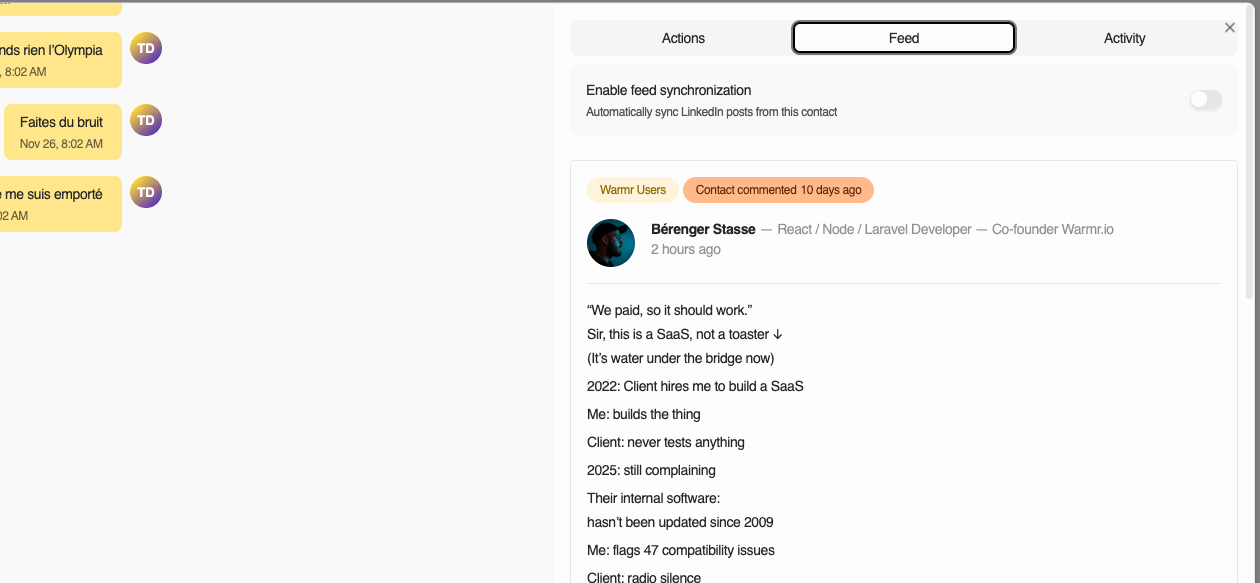
Result: Their feed is accessible directly in the conversation view with that contact, making engagement seamless.
Strategic Use Cases:
High-Priority Prospects: Always keep sync enabled Active Deals: Enable to monitor their activity during sales cycles Cooled-Off Prospects: Disable temporarily to free up sync capacity Completed Deals/Lost Opportunities: Disable to focus resources elsewhere
The Favorites Feature: Ultra-Fresh Feeds
For industry experts, thought leaders, or your absolute highest-priority prospects, you need faster updates than every 4 hours.
How Favorites Work:
Select up to 10 contacts as "Favorites" to receive 30-minute feed refresh cycles during your working hours.
Perfect For:
Industry influencers whose posts get maximum engagement early
Big creators where timing matters for visibility
How to Set Favorites:
Step 1: Go to your prospect list
Step 2: Select up to 10 contacts
Step 3: Click "Mark as Favorite"
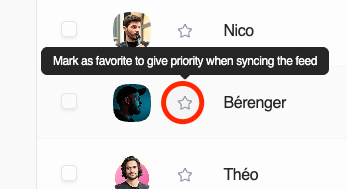
Result: These contacts get 30-minute refresh cycles instead of 4-hour cycles during working hours.
Strategic Favorites Strategy:
Don't use all 10 slots immediately. Reserve them for:
High-engagement creators
Contacts who post time-sensitive industry content
Troubleshooting Common Sync Issues
"I'm not seeing recent posts"
✓ Check Virtual Office hours match your actual working schedule ✓ Verify timezone is set correctly ✓ Confirm contact sync is enabled for that prospect
"Feed seems slow to update"
✓ Consider adding priority contacts to Favorites (30-min refresh) ✓ Check if you're at sync limit capacity (upgrade to Sales Nav if needed) ✓ Ensure syncs are scheduled during your working hours
"Some contacts never appear in feed"
✓ Verify contact sync is enabled at the individual level ✓ Check if contact posts during your virtual office hours ✓ Consider using Indirect Posts for non-posters